What to look for when proofreading
There could be some questions from the copy editor or typesetter when reviewing proofs. When submitting your corrections, make sure to respond to all of these questions.
- →Check the accuracy of your proofs against the original text, and ensure that all figures, tables, and so on are correct.
- →Check the spelling of your name and the names of your co-authors (First name, middle name -if any- Surname).
- →At proofreading stage, changes other than minor amendments are not permitted: please restrict your alterations to the correction of factual errors or misspellings. Avoid changes that will cause large amounts of text to move to different pages. Costs associated with such corrections will be charged to the authors.
- →Hyphenation of words is not questionable. Hyphens to separate syllables are automatically generated by the computer program, in accordance with the official English syllabification.
- →The copy editor may have changed the spelling and punctuation in your article to conform to the journal's style. Changes that involve only matters of style will not be carried out.
- →Significant changes in content, such as new results, corrected values and title changes, are not permitted without the approval of the responsible editor.
Please note: Checking the proofs is your responsibility. After you have sent your corrections, your article is published. The Publisher will execute a cursory check only and is not liable for errors that remain in the published version.
How to use Adobe to correct article proofs
Annotating PDFs means that your corrections are absolutely clear and that errors can't be introduced through misinterpretation of your markup. After opening the file in Adobe, click on the Comment logo in the right-side or top bar and select 'Show All Labels.'
1 The comment toolbar

2 Available correction tools
Insert a note into the text. Click where you want the comment to appear; a comment box will open on the right side.
Highlights selected text and opens a Comment box simultaneously in recent Adobe versions.
Marks the selected text for deletion; redlined word(s) or punctuation marks indicate the removal.
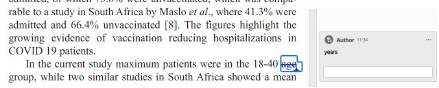
Opens a pop-up where you type the replacement text. Only include the information you want to insert.